Music player: Rhythmbox (full review here)
Alternative: Banshee (full review here)
Banshee is a feature-rich collection-oriented player which includes Internet services, cover manager, smart playlists, Last.fm integration, 10-band equalizer, tray icon, ratings, fullscreen mode, track metadata editor, support for radio and podcasts, plugins and play queue, to list only a part of them. The version which comes in Ubuntu Maverick is 1.8.0, but at the time of writing a new development version, 1.9.0, is available on the official website and can be easily installed using the Banshee daily builds PPA at Launchpad.
Runners-up: Exaile, Listen, Audacious, gmusicbrowser, Decibel Audio Player, Quod Libet, Foobnix, DeaDBeeF, Sonata, GMPC
sudo apt-get install banshee

Movie player: Totem
Alternative: GNOME MPlayer
GNOME MPlayer is a GTK frontend to mplayer the popular, cross-platform movie player. GNOME MPlayer is provided by the package gnome-mplayer and can play any file that mplayer supports. It has support for subtitles, playlist, video info, and comes with pretty much enough configuration options.
Runners-up:
sudo apt-get install gnome-mplayer

File manager: Nautilus (full review here)
Alternative: GNOME Commander
It was a tough choice between this and PCManFM, and finally decided to go for the twin-panel one although the latter is a good replacement too. GNOME Commander is a twin-panel file manager with features like search for files/folders, horizontal layout, SMB support, keyboard shortcuts, bookmarks. It doesn't seem to integrate context menus for various file formats, for example adding/extracting to/from an archive.
Runners-up: PCManFM, Thunar, emelFM
sudo apt-get install gnome-commander

Web browser: Firefox
Alternative: Epiphany
Epiphany is a clean and simple GTK web browser that uses the WebKit layout engine. It includes the usual features like privacy management, bookmarks, tabs, history, fullscreen mode.
Runners-up:
sudo apt-get install epiphany-browser

Word processor: OpenOffice.org Writer
Alternative: Abiword
Abiword is for those who need a word processing application, but without the more advanced features the OpenOffice.org Writer includes and also quite lightweight compared to the latter. It provides a simple, easy-to-use interface and has support for the OpenDocument Text format.
Runners-up:
sudo apt-get install abiword

Image viewer: Eye of GNOME
Alternative: gThumb
gThumb supports a wide variety of image formats and comes with decent features for an image viewer, like bookmarks, basic editing tools (rotate, convert to other formats, resize), extensions.
Runners-up: GPicView, GQview, GImageView
sudo apt-get install gthumb

Terminal application: GNOME Terminal
Alternative: Guake
A few days ago I talked about Yakuake, a KDE Quake-style console application. Well, Guake is its counterpart on the Gnome desktop environment. Guake features transparency effects, keyboard shortcuts (F12 to hide/show the terminal), tray icon, tabs (using the Firefox shortcuts to switch - Ctrl+Page Up and Ctrl+Page Down), configuration options.
Runners-up:
sudo apt-get install guake

Text editor: Gedit
Alternative: Geany
Geany is a very powerful text editor which also offers features for programmers. Geany comes with tabbed support, highlighting for various programming languages, indentation support, projects, plugins and a whole range of configuration options. A respectable replacement for Gedit, and also a valid tool among more advanced IDEs like Emacs.
Runners-up: Scribes, SciTE, Leafpad
sudo apt-get install geany
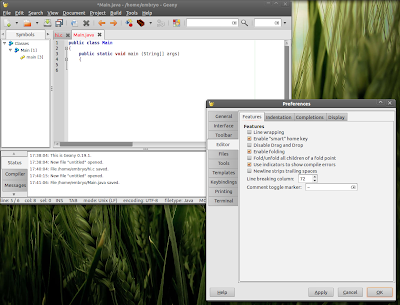
Photo manager: Shotwell
Alternative: F-Spot
What better alternative for Shotwell than the former default photo manager, F-Spot? F-Spot features camera support, importing and exporting images to various services, tags, extensions to name a few.
Runners-up:
sudo apt-get install f-spot

Email client: Evolution
Alternative: Claws Mail
Claws Mail is a highly configurable email client written in GTK with features like address book, support for POP3 or SMTP protocols, external editor, multiple accounts.
Runners-up: Thunderbird (not GTK but integrates well enough)
sudo apt-get install claws-mail

Final notice
All the alternative applications and runners-up were chosen to blend well in the GNOME environment, which means all of them (except for Thunderbird) are GTK-based.Source URL: https://ashesgarrett.blogspot.com/search/label/maverick
Visit ashes garrett for Daily Updated Hairstyles Collection
Alternative: Banshee (full review here)
Banshee is a feature-rich collection-oriented player which includes Internet services, cover manager, smart playlists, Last.fm integration, 10-band equalizer, tray icon, ratings, fullscreen mode, track metadata editor, support for radio and podcasts, plugins and play queue, to list only a part of them. The version which comes in Ubuntu Maverick is 1.8.0, but at the time of writing a new development version, 1.9.0, is available on the official website and can be easily installed using the Banshee daily builds PPA at Launchpad.
Runners-up: Exaile, Listen, Audacious, gmusicbrowser, Decibel Audio Player, Quod Libet, Foobnix, DeaDBeeF, Sonata, GMPC
sudo apt-get install banshee

Movie player: Totem
Alternative: GNOME MPlayer
GNOME MPlayer is a GTK frontend to mplayer the popular, cross-platform movie player. GNOME MPlayer is provided by the package gnome-mplayer and can play any file that mplayer supports. It has support for subtitles, playlist, video info, and comes with pretty much enough configuration options.
Runners-up:
sudo apt-get install gnome-mplayer

File manager: Nautilus (full review here)
Alternative: GNOME Commander
It was a tough choice between this and PCManFM, and finally decided to go for the twin-panel one although the latter is a good replacement too. GNOME Commander is a twin-panel file manager with features like search for files/folders, horizontal layout, SMB support, keyboard shortcuts, bookmarks. It doesn't seem to integrate context menus for various file formats, for example adding/extracting to/from an archive.
Runners-up: PCManFM, Thunar, emelFM
sudo apt-get install gnome-commander

Web browser: Firefox
Alternative: Epiphany
Epiphany is a clean and simple GTK web browser that uses the WebKit layout engine. It includes the usual features like privacy management, bookmarks, tabs, history, fullscreen mode.
Runners-up:
sudo apt-get install epiphany-browser

Word processor: OpenOffice.org Writer
Alternative: Abiword
Abiword is for those who need a word processing application, but without the more advanced features the OpenOffice.org Writer includes and also quite lightweight compared to the latter. It provides a simple, easy-to-use interface and has support for the OpenDocument Text format.
Runners-up:
sudo apt-get install abiword

Image viewer: Eye of GNOME
Alternative: gThumb
gThumb supports a wide variety of image formats and comes with decent features for an image viewer, like bookmarks, basic editing tools (rotate, convert to other formats, resize), extensions.
Runners-up: GPicView, GQview, GImageView
sudo apt-get install gthumb

Terminal application: GNOME Terminal
Alternative: Guake
A few days ago I talked about Yakuake, a KDE Quake-style console application. Well, Guake is its counterpart on the Gnome desktop environment. Guake features transparency effects, keyboard shortcuts (F12 to hide/show the terminal), tray icon, tabs (using the Firefox shortcuts to switch - Ctrl+Page Up and Ctrl+Page Down), configuration options.
Runners-up:
sudo apt-get install guake

Text editor: Gedit
Alternative: Geany
Geany is a very powerful text editor which also offers features for programmers. Geany comes with tabbed support, highlighting for various programming languages, indentation support, projects, plugins and a whole range of configuration options. A respectable replacement for Gedit, and also a valid tool among more advanced IDEs like Emacs.
Runners-up: Scribes, SciTE, Leafpad
sudo apt-get install geany

Photo manager: Shotwell
Alternative: F-Spot
What better alternative for Shotwell than the former default photo manager, F-Spot? F-Spot features camera support, importing and exporting images to various services, tags, extensions to name a few.
Runners-up:
sudo apt-get install f-spot

Email client: Evolution
Alternative: Claws Mail
Claws Mail is a highly configurable email client written in GTK with features like address book, support for POP3 or SMTP protocols, external editor, multiple accounts.
Runners-up: Thunderbird (not GTK but integrates well enough)
sudo apt-get install claws-mail

Final notice
All the alternative applications and runners-up were chosen to blend well in the GNOME environment, which means all of them (except for Thunderbird) are GTK-based.Source URL: https://ashesgarrett.blogspot.com/search/label/maverick
Visit ashes garrett for Daily Updated Hairstyles Collection


