XChat is a GTK client for IRC, available on both Linux and Windows. It is one of the most popular and feature-rich IRC clients on the Linux platform, together with Konversation and KVirc. Of course, there are very good clients like Irssi too, but I'm talking only about graphical clients here.
Although by default XChat doesn't offer all the user-friendly options in its configuration dialogue, its true power stands in the possibility to configure it using /SET variables and Perl/Python scripts or even C plugins. You can practically make XChat behave in any way you want: from a powerful, personalised IRC client for daily use to an IRC help or trivia bot.
In my two recent articles I showed how to make simple Perl scripts for XChat which will change its default behaviour:
Make a Perl Script to Display Notices in Current Window
Make a Perl Script to PART/REJOIN a Channel Similar with mIRC's /HOP
In this article however I will list some of the tips and tricks I consider most popular and useful for the IRC user, leaving all that scripting behind.
Hide JOIN/PART messages using the conference mode
The conference mode can be turned on/off using the irc_conf_mode variable (which by default is 0 - disabled). By turning it on, the join/part and quit messages will not be displayed anymore, so you will be able to keep a log from an IRC meeting/tutorial/discussion without those annoying messages. Use it like this:
/SET irc_conf_mode 1
If you still want to see the messages on other channels, right-click on the channel button, go to Settings -> Hide Join/Part Messages. Tick (or un-tick, depending if you want to see them) this option.
Hide the backlog
Introduced in XChat 2.8.4, this feature will automatically display the last lines from a channel/private log when you open it again. If you want to turn this feature off use:
/SET text_replay 0
This will turn off the backlog.
Show the /WHOIS info in the current window
The /WHOIS information is shown in the status window by default. However if you are on a channel and you /WHOIS someone, you will probably want the information to be displayed in the same window, instead of having to switch on the status window to see it and then back on the channel. To do so, use:
/SET irc_whois_front 1
Change the way events are shown
You can do this using scripts, which provides a more flexible way of doing it, but I'll show here only how to use the Settings -> Advanced -> Text Events... dialogue.
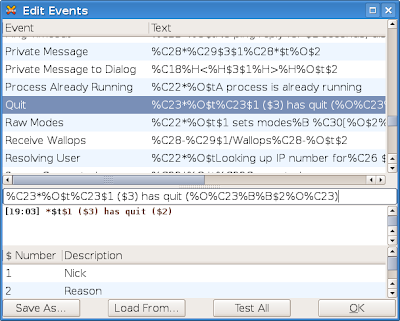
For example, the Quit action looks like this by default:
%C23*%O$t%C23$1 has quit (%O%C23%B%B$2%O%C23)
However, you may also want to see the person's host, add the third parameter ($3 - host), as specified in the Number and Description fields:
%C23*%O$t%C23$1 ($3) has quit (%O%C23%B%B$2%O%C23)
See the screenshot below:
Change the location and format of logs
The default format for logs is %n-%c.log, which will log as network-channel/nick.log (e.g. FreeNode-#debian.log). The logs are kept by default in the ~/.xchat2/logs/ directory. However, you may change this and customise it to your likings:
~/logs_xchat/%n/%Y_%m_%d_%c.log
This will log all in the logs_xchat directory inside your home directory, creating a new folder for each network, and using several conversion specifiers for the filename. In the above example, I used:
%Y for full year digits (e.g. 2009)
%m for the number of the month (e.g. 01-12)
%d for the day number (e.g. 01-31)
%c for the channel/nickname
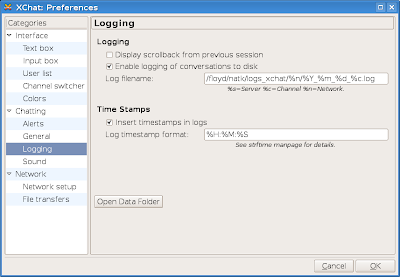
You can find all the conversion specifiers here.
Use shortcuts for last and previous commands
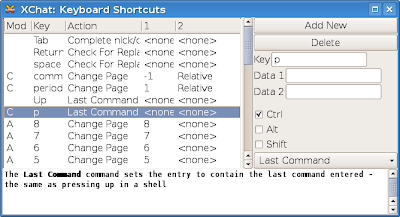
By default, the up and down arrows are used for these two actions. However I always prefered ^P (CTRL+P) for last command and ^N (CTRL+N) for next command. You can add these two in the Settings -> Advanced -> Keyboard Shortcuts... menu. The screenshot below shows how the ^P command should look like, after clicking Add New and filling the necessary fields. Don't forget to press Enter in the Data 1 field, otherwise the new shortcut will be lost after closing the window (I know, extremely annoying but that's the way XChat implements it).
That's it for today. In the next part I'll also include several simple scripts and more /SET tips. Also, I recommend to see this page (offsite), it has some great XChat resources, and eventually the XChat scripts and plugins page.Source URL: https://ashesgarrett.blogspot.com/search/label/irc
Visit ashes garrett for Daily Updated Hairstyles Collection
Although by default XChat doesn't offer all the user-friendly options in its configuration dialogue, its true power stands in the possibility to configure it using /SET variables and Perl/Python scripts or even C plugins. You can practically make XChat behave in any way you want: from a powerful, personalised IRC client for daily use to an IRC help or trivia bot.
In my two recent articles I showed how to make simple Perl scripts for XChat which will change its default behaviour:
Make a Perl Script to Display Notices in Current Window
Make a Perl Script to PART/REJOIN a Channel Similar with mIRC's /HOP
In this article however I will list some of the tips and tricks I consider most popular and useful for the IRC user, leaving all that scripting behind.
Hide JOIN/PART messages using the conference mode
The conference mode can be turned on/off using the irc_conf_mode variable (which by default is 0 - disabled). By turning it on, the join/part and quit messages will not be displayed anymore, so you will be able to keep a log from an IRC meeting/tutorial/discussion without those annoying messages. Use it like this:
/SET irc_conf_mode 1
If you still want to see the messages on other channels, right-click on the channel button, go to Settings -> Hide Join/Part Messages. Tick (or un-tick, depending if you want to see them) this option.
Hide the backlog
Introduced in XChat 2.8.4, this feature will automatically display the last lines from a channel/private log when you open it again. If you want to turn this feature off use:
/SET text_replay 0
This will turn off the backlog.
Show the /WHOIS info in the current window
The /WHOIS information is shown in the status window by default. However if you are on a channel and you /WHOIS someone, you will probably want the information to be displayed in the same window, instead of having to switch on the status window to see it and then back on the channel. To do so, use:
/SET irc_whois_front 1
Change the way events are shown
You can do this using scripts, which provides a more flexible way of doing it, but I'll show here only how to use the Settings -> Advanced -> Text Events... dialogue.
For example, the Quit action looks like this by default:
%C23*%O$t%C23$1 has quit (%O%C23%B%B$2%O%C23)
However, you may also want to see the person's host, add the third parameter ($3 - host), as specified in the Number and Description fields:
%C23*%O$t%C23$1 ($3) has quit (%O%C23%B%B$2%O%C23)
See the screenshot below:

Change the location and format of logs
The default format for logs is %n-%c.log, which will log as network-channel/nick.log (e.g. FreeNode-#debian.log). The logs are kept by default in the ~/.xchat2/logs/ directory. However, you may change this and customise it to your likings:
~/logs_xchat/%n/%Y_%m_%d_%c.log
This will log all in the logs_xchat directory inside your home directory, creating a new folder for each network, and using several conversion specifiers for the filename. In the above example, I used:
%Y for full year digits (e.g. 2009)
%m for the number of the month (e.g. 01-12)
%d for the day number (e.g. 01-31)
%c for the channel/nickname

You can find all the conversion specifiers here.
Use shortcuts for last and previous commands
By default, the up and down arrows are used for these two actions. However I always prefered ^P (CTRL+P) for last command and ^N (CTRL+N) for next command. You can add these two in the Settings -> Advanced -> Keyboard Shortcuts... menu. The screenshot below shows how the ^P command should look like, after clicking Add New and filling the necessary fields. Don't forget to press Enter in the Data 1 field, otherwise the new shortcut will be lost after closing the window (I know, extremely annoying but that's the way XChat implements it).

That's it for today. In the next part I'll also include several simple scripts and more /SET tips. Also, I recommend to see this page (offsite), it has some great XChat resources, and eventually the XChat scripts and plugins page.Source URL: https://ashesgarrett.blogspot.com/search/label/irc
Visit ashes garrett for Daily Updated Hairstyles Collection


